A SaaS rollback is often easiest to spot when a feature disappears from the product screen and the written record still shows the old flow. In many cases…
Last updated: November 13, 2026
Quick Answer
A SaaS rollback is often easiest to spot when a feature disappears from the product screen and the written record still shows the old flow. In many cases, you can confirm it in 24 hours or less by checking the UI, docs, support replies, and rollout controls. This guide explains How to Detect a SaaS Rollback When a New Feature Quietly Disappears without guessing.
A new feature vanished from the product screen, and you need to know if it was rolled back or just moved. A real SaaS rollback leaves a trail in the UI, docs, support replies, and rollout controls. The steps below show you how to tell the difference without guessing.
Key Takeaways

- A rollback rarely disappears cleanly; something usually lingers in help docs, release notes, or the status page.
- A mismatch between the product screen and the written record is one of the quickest clues.
- Support replies often reveal whether the change is temporary, partial, or tied to a feature flag.
- A redesign changes labels and layout; a rollback removes behavior or makes an action stop working.
- Check the same feature in more than one account if you can. Partial rollbacks often hit only some users.
What counts as a SaaS rollback here?
A rollback means the feature was visible or usable, then quietly withdrawn, limited, or reverted after it reached users. That can happen through a feature flag, a hotfix, or a staged disablement. The giveaway is not just that something is gone — it’s that the change is narrower than a full product redesign.
Picture this: you open the product screen, and yesterday’s button is gone. The page still loads, the menu still exists, but the action no longer appears where it used to sit. That’s the kind of disappearance this guide is built to sort out. The difference matters because a rollback usually leaves paper trails. A redesign often changes the shape of the page, not just one feature.
To avoid mixing the two, watch for four signals:
- the feature is missing from one screen but still named in help docs
- release notes mention an experiment, a temporary disablement, or a revert
- support says the feature was turned off for some accounts
- the status page shows a related incident, even if it does not name the feature
A clean rollback can look messy for 24 hours or longer if the vendor updates docs slowly. That delay is normal. What matters is whether the evidence points in one direction. If the product screen changed, but the support reply and docs still describe the old behavior, you’re probably looking at a rollback rather than a new design.
Start with the product screen and compare it to yesterday’s state
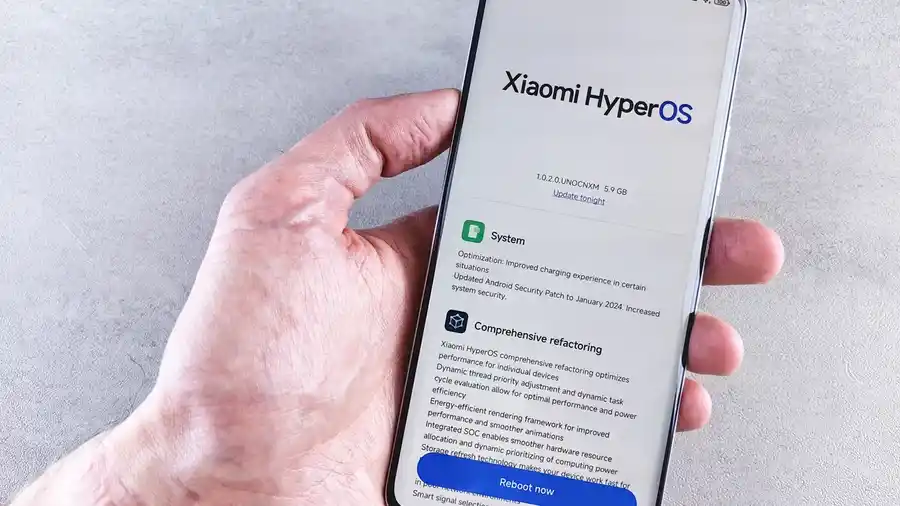
The product screen is often the quickest place to spot a rollback because the disappearance usually shows up there first. Open the exact page where the feature used to live, then compare the current layout to a screenshot, recording, or cached view from the last 7 days.
Picture this: you’re on the same screen, same account, same browser, and the feature is simply gone. The layout still looks familiar, but one control, panel, or toggle has vanished. That’s not enough to prove a rollback on its own, but it’s the first strong signal.
- Open the product screen and go to the exact workflow where the feature used to appear.
- Check the same account type you used before, because admins, trials, and paid seats often see different controls.
- Compare the control label against a screenshot or recording from before the disappearance.
- Look for a replacement path such as a menu move, a renamed button, or a hidden overflow action.
- Repeat in a second browser or private window if you need to rule out a local cache or extension issue.
A rollback clue is a missing action with the rest of the page intact. A redesign clue is a broader shift: new spacing, new labels, and several controls moved at once. If only one feature is missing and the page still works the same way around it, the odds lean toward a rollback or temporary disablement.
You do not need a full audit trail to start. A plain before-and-after comparison often tells you enough to keep digging in the right direction.
Check release notes, help docs, and the status page next
Written sources usually expose the rollback faster than the product screen does. Release notes, help docs, and the status page often lag behind the UI by a few hours or a few days, but they still show whether the disappearance was intentional.
Picture this: the feature is missing, yet the help docs still teach the old flow. Or the release notes quietly mention a “temporary disablement” without using the word rollback. That mismatch is the clue you want. It means the change was not just a random UI glitch.
Look for these specific signals:
- Release notes mention a revert, pause, experiment, or partial disablement.
- Help docs still show the old steps, which suggests the product moved before the docs caught up.
- Status page lists an incident touching the same area, even if the feature is not named directly.
- Docs revision timestamps are newer on unrelated pages, which can mean only one feature was pulled back.
The truth is, documentation delay is common. A help article can trail the product screen by 1 day or more, especially if the vendor has many pages to update. That delay does not prove a rollback by itself, but it helps you separate a real product withdrawal from a simple content refresh.
If the docs still describe a feature that vanished from the UI, and the status page mentions a related incident, you’re probably not looking at a redesign. You’re looking at a controlled rollback or a limited disablement.
How do I tell a rollback from a redesign?
A rollback removes behavior; a redesign usually changes presentation. That’s the cleanest split. If the same task no longer works, or the path to complete it is gone, you’re likely dealing with rollback territory. If the task still works but the page looks different, it may just be a redesign.
Picture this: the button moved from the top right to a side panel, and the feature still works once you find it. That points toward a redesign. Now picture the button disappearing completely, while the rest of the workflow stays intact. That points toward a rollback or a feature flag being turned off.
Use this comparison:
- Rollback: the action is gone, blocked, grayed out, or replaced with a warning
- Redesign: the action still exists, but the label, placement, or grouping changed
- Partial rollback: some users still see it, but others do not
- Temporary disablement: the vendor hides or disables the feature during an incident or fix
One simple test is the workflow test. Try to complete the same job in 2 different paths inside the app. If both paths fail in the same way, the feature itself is likely gone or disabled. If one path still works and the other is merely rearranged, the issue is probably a redesign or a UX change.
A redesign can be annoying. A rollback is more serious because it changes the product promise for at least part of the user base. That distinction matters when you’re deciding whether to wait, contact support, or update internal instructions.
Use support replies to confirm whether the change is temporary
Support replies often confirm the rollback before anything else does. A short acknowledgment can tell you whether the disappearance was intentional, whether it is tied to a feature flag, and whether the change affects all users or only certain plans.
Picture this: you send a plain question asking where the feature went, and support replies that it was “temporarily disabled” or “turned off for investigation.” That wording is strong evidence. It usually means the vendor knows the feature disappeared on purpose.
When you contact support, ask for the smallest useful facts:
- whether the feature was disabled, reverted, or moved
- whether the change affects all accounts or only some
- whether a feature flag is involved
- whether there is a ticket or incident number you can reference later
A clear support reply beats guesswork. If the agent says the feature is available only to a subset of accounts, you may be seeing a partial rollback or a staged release that got pulled back. If they say it is “under review,” that often means the feature flag is still there, but the vendor has switched it off.
Keep the wording simple. Don’t ask “did you roll it back?” first. Ask where the feature went and whether it is expected to return. That gets you a cleaner answer than a loaded question. You want the operational truth, not a canned apology.
Look for partial rollback clues in account scope and feature flags
A partial rollback means the feature disappeared for some users, plans, regions, or browser paths, but not all of them. Feature flags make this especially common because one switch can hide the feature without removing the code.
Picture this: your colleague still sees the feature, but your account does not. Or the feature appears in one workspace and not another. That pattern points away from a full product removal and toward a scoped rollback.
Check these places:
- Another account in the same tenant, if you have one
- A different role, such as admin versus member
- A different browser or device, if the vendor uses client-side flags
- A different workspace or project, if the app is segmented
A feature flag can make a rollback look random when it isn’t. One account sees the feature because the flag is still on; another loses it because the vendor turned the flag off after a bug or complaint. That’s why a single screenshot is weak evidence. You need to know whether the disappearance follows the user, the workspace, or the whole product.
Scope gives you the answer faster than theory. If the feature is missing only in one account class, you’re likely seeing a partial rollback or staged disablement, not a broad product redesign. If it disappears everywhere at once, the rollback was probably more deliberate.
How to record the evidence so you can trust it later
You can trust a rollback call only if you can show the chain of evidence. The goal is a simple record that links the product screen, the written sources, and the support reply without overthinking it.
Picture this: a week later, someone asks why the team updated its workflow docs. You have the screenshots, the release note, the support email, and the date the feature vanished. That bundle turns a hunch into a usable record.
Save these items in order:
- Screenshot or recording of the missing feature on the product screen
- Help doc page that still describes the old flow, or the one that changed
- Release note or changelog entry that mentions a pause, revert, or limited rollout
- Status page incident if one exists
- Support reply with the key wording about disablement or scope
Keep the timestamps visible where possible. A note from Monday morning matters more than a vague memory of “last week.” If you can, add the account type and role next to each item. That helps separate a broad rollback from a tenant-specific one.
Don’t overstate what the evidence says. A disappeared feature can still be a short-lived outage, a hidden experiment, or a user-specific flag change. The value of this process is precision. It tells you when the feature was intentionally withdrawn — and when the evidence is still too thin to call it that.
For broader context on release tracking, this page fits under the site’s hub on SaaS release and change verification.
How can I tell if a feature was rolled back?
A feature was probably rolled back if it disappears from the product screen and the written record still shows the old behavior. Support replies, release notes, and the status page often confirm it with words like “temporary disablement,” “revert,” or “partial rollout.” If the action is gone but the rest of the workflow still looks the same, that’s a strong rollback sign. For release and incident tracking practices, see Atlassian’s guidance on incident management and Google’s Site Reliability Engineering materials.
What clues show a rollback instead of a redesign?
A rollback removes the action; a redesign changes how you get to it. If the feature vanishes, the docs lag behind, and support calls it temporary or scoped, that points to rollback territory. If the feature still works after a label or layout shift, it’s more likely a redesign. Account-by-account differences also point to feature flags. See the LaunchDarkly documentation on feature flags for how targeted changes can affect different users.
Should I check docs or the UI first?
Check the UI first, then the docs. The product screen shows the change as users feel it, while help docs and release notes tell you whether the change was intentional. If the UI changed but docs still describe the old flow, that mismatch is often the clearest rollback clue. For source verification, compare the current screen with the release note and the status page.
Drafted with AI; not yet reviewed by a person.