A content production tracker for SaaS teams helps you see where every draft sits, who has it, and what happens next. Quick answer: a lean tracker can…
Last updated: November 20, 2026
A content production tracker for SaaS teams helps you see where every draft sits, who has it, and what happens next. Quick answer: a lean tracker can usually work with 8 to 10 fields and still cover drafts, revisions, publish status, workflow stages, and deadline handoffs in one place, so the content calendar does not turn into guesswork. In this guide to How to Build a SaaS Content Production Tracker for Drafts, Revisions, and Publish Status, the goal is to keep production visible without turning the tracker into extra admin.
Key takeaways
- A good tracker is built around status, owner, due date, and the next action, not around long notes.
- Draft status, revision status, and publish status need separate fields, or the same article will look “active” and “done” at the same time.
- The tracker should sit beside the content calendar, not replace it.
- The best setup is the one your team can update in about 2 minutes per item.
- This page is about production tracking, not intake, review routing, or ownership mapping.
What should the tracker actually do?

A good tracker shows the movement of one asset from draft to publish status without forcing anyone to read a long thread. It should answer four questions at a glance: what stage the asset is in, who has it, when it is due, and what still blocks it.
For a SaaS content team, that means the tracker needs to handle draft status, revision status, and publish status as separate fields. If those are mixed into one label, a writer can mark an article “in progress” while an editor thinks it is ready, and the calendar stops being reliable.
The tracker also needs to support handoff tracking and deadline tracking. That means you can see when the draft moved from writer to editor, when it came back for changes, and whether the publish date slipped. A content calendar still has its place, but it is better at planning than at showing production detail.
Keep the first version simple. A tracker with 8 to 10 fields is usually enough: title, content type, owner, stage, due date, revision round, publish date, status, and notes. If the sheet grows to 20 columns, people stop updating it. That is a common failure point, not a feature.
This guide sits under the SaaS content production and optimization hub because the tracker supports execution, not just planning. It is the working board you check when an article is late, revised, or already live.
Which fields belong in a SaaS content production tracker?
A useful tracker includes only the fields that help move an asset forward, and each field should have one job. The core set is enough for most teams and works in a spreadsheet, a project tool, or a database table.
Use these fields first:
- Content title: the working name of the draft.
- Content type: blog post, landing page, case study, or update.
- Owner: the person responsible for the current step.
- Workflow stage: draft, revision, scheduled, or published.
- Draft status: not started, in progress, ready for edit, or approved.
- Revision status: none, first pass, second pass, final pass.
- Publish status: scheduled, live, delayed, or unpublished.
- Due date: the date the current step should finish.
- Publish date: the date the article goes live.
- Next action: what happens next in one short phrase.
That field set covers the production path without drifting into a content change log or a content ownership matrix. Those are different pages, with different jobs, and this tracker should not try to replace them.
A simple status system is better than a long custom taxonomy. One model that works well is a 4-stage flow: draft, revise, schedule, publish. If a team needs more detail, it can add sub-statuses under each stage, but the main stage should stay obvious. A reader scanning the tracker should not need to decode code names.
If the team uses a spreadsheet, freeze the first row and apply a filter to each column. If the team uses a database-style tool, make status fields single-select rather than free text. That keeps “In review,” “In Review,” and “review” from splitting the same stage into three versions. Microsoft Support explains how to create drop-down lists in Excel, which is one practical way to keep status values consistent: https://support.microsoft.com/en-us/office/create-a-drop-down-list-7693307a-59ef-400a-9f5d-cf7f1c5d9e10
How do you build the tracker step by step?

You build the tracker by defining the stage names first, then adding the fields that prove each handoff happened. The order matters because a tracker built from random columns usually becomes a dumping ground within a month.
- List the stages your content really moves through. Use a short chain such as draft, revision, scheduled, and published. This gives the team a shared model before any data goes in.
- Choose one place to store the tracker. A spreadsheet works well for small teams, while a project tool or database table fits a larger queue. The tool matters less than whether everyone can open it in 10 seconds.
- Create one row per asset. Every article, landing page, or update gets its own line. One row should never hold two drafts, because that hides deadlines and makes handoffs hard to read.
- Add the fields for status, due date, and owner. Keep the first version to the essentials: title, stage, draft status, revision status, publish status, owner, due date, and publish date. That is enough to spot bottlenecks.
- Use dropdowns or single-select values for every status field. A fixed list keeps reporting clean and avoids spelling drift. The result is a tracker that can be sorted in seconds instead of cleaned for 30 minutes.
- Define who updates each field. For example, the writer may update draft status, the editor may update revision status, and the person handling publication may update publish status. Clear handoff rules keep the tracker current.
- Set one review cadence. Check the tracker once a day or once a week, depending on volume. Without a fixed rhythm, overdue items stay buried until the content calendar is already broken.
A useful rule here is to track the next action, not the whole history. If the sheet starts holding every comment, every changed heading, and every back-and-forth note, it stops being a production tracker and becomes a scrapbook. The details belong elsewhere.
For a SaaS team, the cleanest model is often “one row, one status, one owner.” That keeps the tracker readable even when the queue is long. It also makes deadline tracking easier because overdue items stand out without extra formatting.
How do you track drafts, revisions, and publish status without confusion?
You track drafts, revisions, and publish status separately so one article can move forward without losing its history. Each status should answer a different question, and the field name should make that clear.
A draft status tells you whether the piece exists and how close it is to ready. A revision status tells you whether edits are in motion. A publish status tells you what happened after approval: scheduled, live, delayed, or still waiting. If those three are collapsed into one field, a “ready” article can look the same as a “published” one.
The cleanest way to manage this is to make status changes tied to specific handoffs. When a writer finishes the first draft, the draft status changes to ready for edit. When the editor sends it back, the revision status changes to first pass or second pass. When the final copy is locked, the publish status changes to scheduled or live.
Here is a simple comparison of status models:
| Approach | What it looks like | Best for | Trade-off |
|---|---|---|---|
| One status field | Draft / Editing / Published | Tiny teams with very low volume | Hides revision loops and deadline slips |
| Separate draft, revision, and publish fields | Three fields that each show a different state | SaaS teams with repeated edits and multiple handoffs | Takes a little more discipline to update |
| Stage plus sub-status | Main stage with a finer label under it | Larger teams with many content types | Can become hard to read if overbuilt |
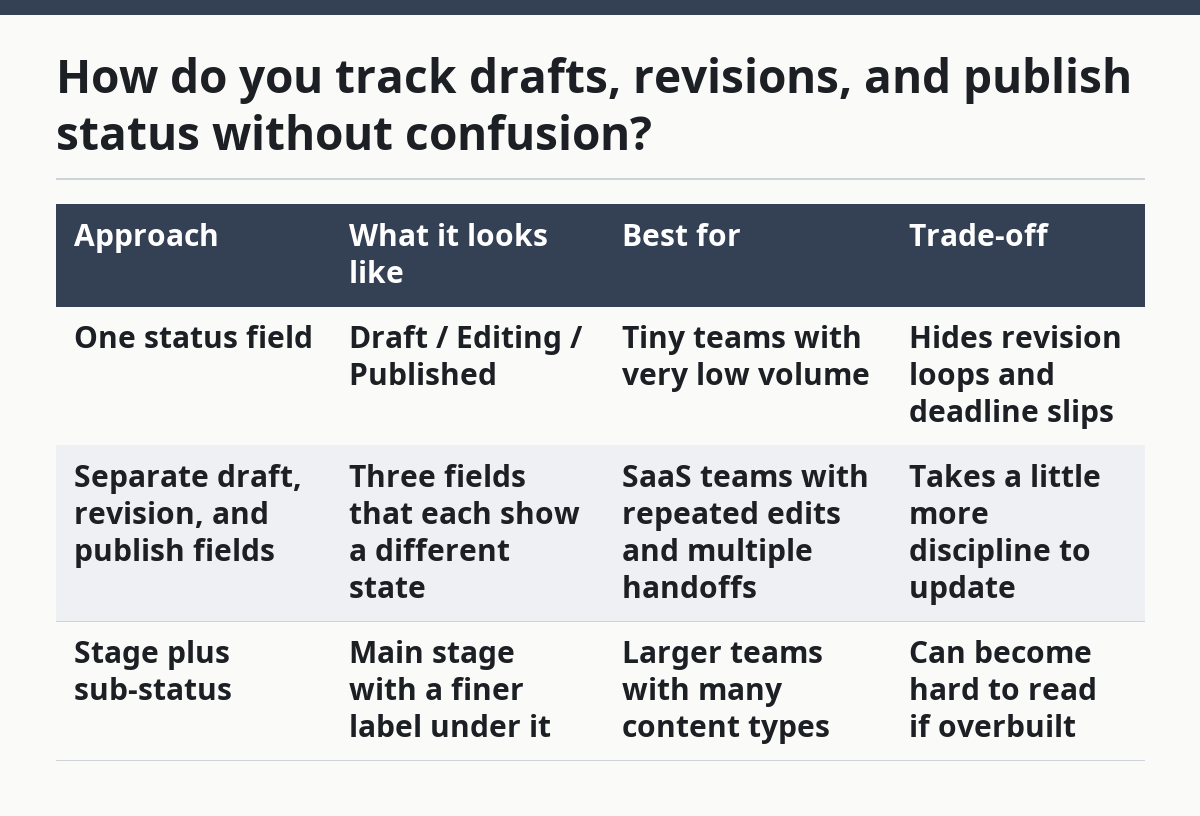
The separate-field model is usually the safest choice for SaaS content because revisions are common and publication timing matters. It is not the simplest model, but it is the one least likely to break when an article gets sent back twice.
A small detail helps a lot: make the publish status field the only place where “live” appears. That reduces overlap between draft and published states and makes the tracker easier to scan.
How do you keep handoffs and deadlines visible?
You keep handoffs and deadlines visible by making the next owner and next due date impossible to miss. A tracker fails when the current step is clear but the next step is hidden in a note.
Use two fields for this: next owner and current due date. When a writer finishes, the next owner should switch to the editor. When the editor finishes, the next owner should switch to publishing or scheduling. The due date should move with the task, not stay attached to the original brief forever.
Deadline tracking works best when each stage has its own date. A draft due date should not be used as the publish date, and a publish date should not be used as the revision deadline. Those dates solve different problems. If all three live in one field, delays can be harder to diagnose, so it is wise to consult a workflow or operations professional if the process is complex.
A simple color rule can help, but keep it light. Red for overdue, amber for due within 2 days, and no color for on time is enough for most teams. If every cell is colored, nobody sees the warning signs.
One practical habit matters more than any color scheme: update the tracker at the handoff, not later in the day. If a draft leaves one person’s hands and the tracker stays unchanged for 24 hours, every follow-up becomes a guess. That is how “Where is this?” turns into the most common message in the channel.
For teams using a spreadsheet, a weekly sort by due date can surface the slowest items in about 5 minutes. For teams using a database tool, a filtered view for “due this week” and “overdue” is usually enough. The tool can vary, but the habit must stay the same.
What should you avoid when building one?
You should avoid building a tracker that looks complete but cannot answer a simple status question in under 10 seconds. The most common mistake is adding too many fields and too many custom labels.
A few mistakes cost real time:
- Using one general status field for everything costs clarity, because revisions and publish status get blurred together.
- Letting people type free-text statuses costs searchability, because the same stage ends up under several spellings.
- Skipping due dates costs deadline control, because stalled items stay invisible.
- Putting the tracker in the wrong place costs adoption, because nobody opens a file they cannot find quickly.
- Treating the tracker like a project archive can cost speed, because old notes bury the current action, so it can help to keep the tracker focused and, if needed, consult a workflow professional about the process.
A better approach is to keep the tracker lean and pair it with the content calendar. The calendar tells the team what is planned. The tracker tells the team what is happening now. That split is useful because planning and production are not the same thing.
This page is not the place for content intake workflow, editorial calendar design, review routing, or a content change log. Those each solve a different problem, and mixing them into one sheet usually creates confusion instead of control. A tracker should support the workflow stages, not absorb every workflow document on the site.
A useful rule of thumb: if a field does not help someone move the content forward this week, cut it. The right tracker is smaller than people expect.
Which tool should you use?
You should use the tool your team can update every day, not the tool with the most features. A spreadsheet is often the fastest start because it is simple, familiar, and easy to sort by status, due date, or owner.
If the team has a small queue and few handoffs, a spreadsheet is usually enough. If the team needs multiple views, automations, or richer task tracking, a project tool or database-style app may fit better.
The trade-off is usually the same: more structure can help, but more structure also takes more setup and more discipline. For that reason, many teams start with a spreadsheet and only move to a more structured tool when the workflow actually demands it.
A spreadsheet works well when:
- the team is small,
- the number of active assets is limited,
- and status changes happen in a single place.
A more structured tool works better when:
- many people touch the same asset,
- multiple status views are needed,
- and the team wants reminders or linked records.
If the tracker lives in a spreadsheet, Microsoft Support has a guide on creating a drop-down list in Excel, and Google Docs Help covers version history in Google Docs. Those are useful references if the team wants to reduce free-text status fields and keep revisions traceable without cluttering the tracker itself: https://support.microsoft.com/en-us/office/create-a-drop-down-list-7693307a-59ef-400a-9f5d-cf7f1c5d9e10 and https://support.google.com/docs/answer/190843?hl=en
The wrong choice is the one nobody maintains. A fancy tool with a broken update habit is worse than a plain sheet that gets checked every morning. The right setup is the one that makes draft status, revision status, publish status, handoffs, and deadlines obvious without extra chasing.
What should a content tracker include?
A content tracker should include the title, owner, stage, due date, and publish status at minimum. For SaaS content, it should also separate draft status from revision status, because those are not the same thing. If the team tracks handoffs, add next owner and next due date so the workflow does not stall.
How do you track article status?
Track article status with fixed labels that match the real workflow, such as draft, revision, scheduled, and published. Use dropdowns or single-select fields so the same status does not appear in different spellings. The best setup shows both the current stage and the next action in one glance.
How do you know where each draft is stuck?
You find a stuck draft by checking three fields: current stage, owner, and due date. If the stage changed but the owner did not, the handoff is probably missing. If the due date passed and the next action is blank, the draft is waiting for someone to move it.
Drafted with AI; not yet reviewed by a person.