
How to Read a SaaS Integrations Page for Ecosystem Fit, Dependencies, and Missing Connectors: in 5 minutes, you can usually judge a SaaS integrations page…
Last updated: November 16, 2026
Quick answer: in 5 minutes, you can usually judge a SaaS integrations page by checking 3 things: native connectors, API/webhook support, and missing core tools. A SaaS integrations page tells you whether the product fits your stack, what it depends on, and which connectors you will still have to build or buy elsewhere. Read the SaaS integrations page for three things: native integrations, API and webhook support, and the gaps around your core tools.
Key takeaways
- Start with the integration catalog, not the logos on the homepage.
- Native connectors matter most when your team needs less setup and fewer moving parts.
- API and webhook mentions tell you where the product can go beyond the listed apps.
- Missing connectors are not just a feature gap; they can mean extra admin work, a Zapier plan, or custom code.
- A long logo wall can still hide weak ecosystem fit if the exact systems you use are absent.
How do I read a SaaS integrations page?

Read a SaaS integrations page by checking what is native, what is automated through a third party, and what is missing from your stack. The page is useful when it tells you, in plain terms, whether the product connects to the systems you already run, such as your CRM, data warehouse, support desk, or billing tool.
Start with the integration catalog. A page that lists 5 apps is very different from one that lists 50, even if the design looks polished in both cases. The count alone does not prove fit, but it tells you how wide the vendor’s ecosystem already is.
Then look for the word native. A native connector usually means the vendor built and maintains the link directly, which is simpler than a workaround. If the page mostly points to Zapier or another automation layer, that is still useful, but it usually means the connection depends on a second system and another set of limits.
Finally, scan for the missing pieces. If the page names Slack, Salesforce, and Google Drive but your team runs HubSpot, Snowflake, and Zendesk, the fit is only partial. The right question is not “Does it have integrations?” It is “Does it have the ones my workflow cannot live without?”
What should I look for first on the page?
Look for the product’s own connectors first, because they usually show what the vendor treats as core. If you need to verify that judgment, consult the vendor’s docs or an implementation specialist before you buy. A native connector usually sits next to the name of the app, while a marketplace, directory, or “works with” badge often means the path is looser.
Use this order:
- Open the integration catalog and note which systems are listed by name. If the page has 12 apps and your stack depends on 3 of them, you already know the fit is incomplete.
- Check for native wording such as “native integration,” “built-in,” or “direct connector.” That tells you the vendor owns the connection instead of routing you through another tool.
- Look for the setup model. If the page says you can connect in minutes, treat that as a signal, not proof. If you need certainty, consult the vendor’s setup guide or a professional implementation partner. The real question is whether the data flows one way, two way, or only through a manual export.
- Find the automation layer. If the page mentions Zapier, Make, or similar tools, write that down as a dependency, not as the same thing as a native connector.
- Scan for the API and webhook mentions. These are strong signs that the product can move data beyond the listed logos, though you should still confirm scope in the docs.
- Mark the gaps. If your must-have tools are missing, note whether the vendor offers a public API, a webhook, or nothing at all. That difference often matters more than a glossy integration count.
This order works because it separates the promise from the plumbing. A page can look broad while still forcing manual steps in the one workflow you care about.
What do native integrations, API, and webhooks tell me?
Native integrations, API mentions, and webhooks tell you how much control the vendor gives you over the connection. They are not the same thing, and a page that blurs them is usually hiding work somewhere downstream.
| Signal on the page | What it usually means | What to watch for |
|---|---|---|
| Native connector | Vendor-built link to another app | Maintenance quality, sync direction, field limits |
| API mention | You can build or buy a custom connection | Developer effort, auth, rate limits, docs quality |
| Webhook mention | The product can send event data to another system | Event coverage, retries, payload shape |
| Zapier mention | A third-party automation layer can bridge apps | Extra account, extra cost, extra dependency |
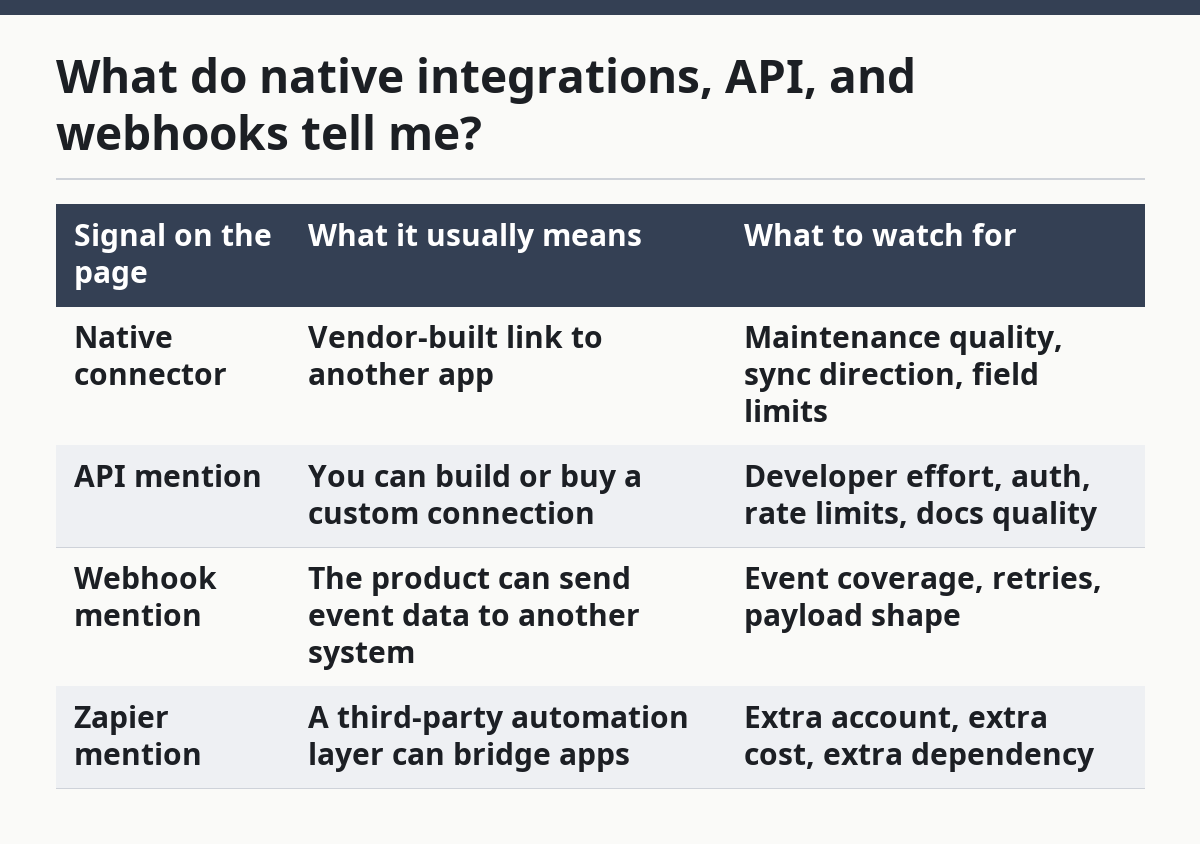
The API matters when your exact tool is not listed. If the vendor has a public API, that does not solve everything, but it often means a custom connector is possible. If the page never mentions an API, your options may be limited to the listed apps and whatever the vendor support team is willing to expose.
Webhooks are a strong sign for workflow teams because they can move events in near real time. A webhook mention is especially useful when you care about updates, not just imports. If a page says “webhooks available” but gives no examples, consult the vendor docs or a technical reviewer before you rely on it.
Zapier is useful when you need speed and the exact integration is not native. The trade-off is simple: less code, more dependency. That is a fair exchange for many teams, but it is not the same as an in-product connector, and it should be read that way.
For a broader analysis of SaaS pages in this cluster, this sits beside the site’s SaaS homepage analysis and landing page analysis hub, which is where the bigger pattern work belongs. For a vendor-side example, Zapier’s app directory is a useful external reference for how third-party bridges are presented.
How do I tell if my stack will work?
Your stack will work if the integrations page covers the systems that move data into, through, and out of the product. That means looking past “popular apps” and checking the actual workflow you need.
If the product is a source of truth, you need connectors for the tools that read from it and the tools that write to it. A support platform that only sends data out is different from one that also pulls customer fields back in. That difference changes how much manual work stays on your team.
The fastest way to judge fit is to map three lanes:
- Input lane: where data comes from, such as forms, CRM records, or billing events.
- Processing lane: where the SaaS tool acts, such as scoring, routing, or approval.
- Output lane: where the result lands, such as dashboards, tickets, or alerts.
If the integrations page covers only the output lane, the vendor may still work, but the setup will depend on imports, exports, or extra automation. If it covers all three lanes natively, the fit is stronger.
One common mistake is to treat “we integrate with major tools” as enough. “Major” is not your stack. A product that lists 20 recognizable logos can still miss the one system that controls your records, and that missing connector can force a manual CSV step every week.
The honest trade-off is speed versus control. A broad catalog with Zapier support can get you moving faster, while a smaller set of native connectors can reduce upkeep. That choice depends on whether your team values quick setup or tighter control over the data path.
What are missing connectors on an integrations page?
Missing connectors are the apps your workflow needs but the vendor does not list, and they are often the best signal of ecosystem fit. A missing connector is not always a dealbreaker, but it changes the cost of adoption in a way the page may not spell out.
There are three kinds of missing connectors:
- Missing but replaceable. The vendor does not list the app, but there is a Zapier path or an API, so the gap can be bridged.
- Missing and awkward. The vendor has no native connector, no webhook support, and no public API mention, so the only path may be manual exports or a custom build.
- Missing and strategic. The absent tool is central to your workflow, such as your CRM or support desk, so the product may not fit at all.
The cost of a missing connector is not just technical. It can mean delayed launches, more admin work, or a workflow split across 2 systems that never quite agree. If the page hides that absence behind a long list of other logos, it is still an absence.
A good integrations page helps you find these gaps quickly. It names the systems it serves, it shows whether the connections are native or dependent on another layer, and it gives you enough detail to judge fit before a demo. A weak page does the opposite: it hints at compatibility while leaving the real work for later.
I would trust a page that is short and specific over one that is broad and vague. This is not a page for people who want marketing polish first. It is for people who need to know, in under a minute, whether the product can live inside their existing stack.
Which comparison is more useful: native, API, or Zapier?
Native is the safest bet for maintenance, API is the most flexible, and Zapier is the quickest bridge. That is the useful comparison because each option solves a different problem.
| Option | Best when | Main drawback |
|---|---|---|
| Native integration | You need a direct, vendor-supported connection | Fewer custom paths |
| API | You need a custom workflow or a missing connector | More setup and developer time |
| Zapier | You need a fast workaround across common apps | Extra dependency outside the product |
A generic article might tell you that all integrations are “good to have.” That misses the point. The better question is which layer your team can afford to depend on. If the workflow is mission-critical, native support usually wins. If the workflow is unusual but important, an API may be the only serious option. If you need something working this week, Zapier can be enough.
Two source types are worth checking when you want to verify the signal, not just the sales copy: Zapier’s app directory and the vendor’s own API or developer docs. Those pages usually tell you more about real connector depth than a homepage badge does. If the vendor links to a developer page, that is a stronger sign than a single “integrates with” logo. For API expectations, the Salesforce developer docs are a useful benchmark for what a real public API page can look like.
What should I do before I book a demo?
Before you book a demo, list the 5 systems that matter most and check whether the integrations page covers each one. That gives you a fast pass-fail view before you spend time on a call.
Bring three questions into the demo:
- Is this connector native or routed through another platform?
- Does data move one way or both ways?
- Is the API public, documented, and meant for customer use?
Those questions separate real fit from brochure fit. A vendor can say yes to “integration” while still requiring a workaround for the exact task you care about. If the page and the demo both stay vague, assume the connector story is weaker than the marketing copy suggests.
What does a SaaS integrations page reveal?
A SaaS integrations page reveals how the product fits into a real stack, not just how many logos it can display. It shows which apps are first-class citizens, which links depend on another tool, and where you may need custom work.
It also reveals the vendor’s product shape. A company that leads with native connectors usually has a tighter ecosystem. A company that leans hard on Zapier often wants to cover breadth without building every connector itself. Both can be useful, but they are not the same promise.
How do I tell if a SaaS tool fits my stack?
A SaaS tool fits your stack when its integrations page covers the apps that move your data in, through, and out of the product. Look for direct connectors to your core systems, plus an API or webhook path if one of your tools is missing.
If the page only names tools that are adjacent to your workflow, that is not enough. The missing connector may still be manageable, but it should be a conscious trade-off, not a surprise after signup.
What are missing connectors on an integrations page?
Missing connectors are the apps your team needs that do not appear in the integration catalog. They matter because they often create hidden work, even when the rest of the page looks strong.
If there is an API or Zapier support, a missing connector may still be workable. If there is no native connector, no webhook mention, and no public API, the gap is a warning sign that the product may not belong in your stack.
Drafted with AI; not yet reviewed by a person.