In 3 checks, you can usually tell whether a SaaS troubleshooting article is a real fix, a workaround, or a clue about product weakness. Read this topic…
Last updated: November 16, 2026
Quick Answer: In 3 checks, you can usually tell whether a SaaS troubleshooting article is a real fix, a workaround, or a clue about product weakness. Read this topic, How to Read a SaaS Troubleshooting Article for Known Issues, Workarounds, and Product Weaknesses, by starting with the exact error, then the scope, then the update path. If the article names a known issue, repeats a status reference, or points to a support ticket path, it is telling you more than how to fix one screen. It is also showing where the product breaks, how the vendor handles bugs, and whether the fix is a patch or a stopgap.
Key takeaways
- A troubleshooting article is useful for more than repair; it can reveal recurring product pain.
- The exact error message matters more than the headline, because the same product can fail in different ways.
- A workaround is not the same as a fix, and the difference changes how much risk you carry.
- Repeated status references, support ticket links, and bug notices can point to a weak part of the app.
- Articles that avoid the cause, the scope, or the update path usually leave the hardest problem unsolved.
What should I look for first?
Therefore, start with the exact error message, because that is often the fastest way to tell whether the article matches your problem. The title may be broad, but the message often shows the real failure mode, such as a 4xx request issue, a 5xx server issue, or a validation error tied to one field. RFC 9110 and MDN both use status-code language to separate request failures from server failures, which is why the code matters.
- Open the SaaS troubleshooting article and copy the full error text, not just the headline.
- Match that text to the symptom in the article, including any code, status reference, or quoted button name.
- Check the scope line for words like “all users,” “some accounts,” or “specific browser,” because that narrows the failure.
- Compare the steps with the interface shown in the article, especially if the screenshot or menu path uses a version label.
- Record the support ticket number or bug notice if the article gives one, since that tells you the issue already reached support.
A good article usually names the symptom before it names the fix. That order matters because a generic “login problem” page can cover several different causes, while an exact message like “token expired” points to one clock or session path. When the article includes a status reference, it can also show whether the issue is local to one account or part of a wider outage.
Is this a known issue or just a user mistake?
However, it is a known issue when the article describes the problem as repeatable, documented, or tied to a product bug. It is more likely a user mistake when the article focuses on settings, permissions, missing steps, or a browser requirement and never mentions a bug notice or support ticket path.
Look for four signals. First, the article uses labels like “known issue,” “bug,” “incident,” or “temporary workaround.” Second, it tells you the problem affects a specific flow, such as export, SSO, or notifications, instead of the whole app. Third, it gives a status reference or an internal case number. Fourth, it avoids blaming the user in absolute terms.
That difference matters because it changes what you should expect next. If the article is a known issue, the fix may be temporary and the vendor may still be shipping a code change. If it is a user step problem, the remedy is often a setting change, a permission grant, or a supported browser version. An article that never says which one it is leaves you guessing.
A generic help page can hide this split. A strong troubleshooting article will tell you whether the issue is on the product side, the account side, or the environment side. When it does not, the article is weak even if the steps look polished. If you are unsure, consult a support specialist or the vendor’s help center and incident history before you act.
How do I tell a workaround from a fix?
Therefore, a workaround is a safe detour that gets the task done; a fix removes the root problem. In a SaaS troubleshooting article, the workaround is often temporary, while the fix may be described as “resolved,” “patched,” or “closed” in a later status reference.
Use the wording as your guide. If the article says to switch browsers, clear cache, retry after 2 minutes, or use a different export path, that is usually a workaround. If it says the vendor changed the code, adjusted the API, or updated the service after a bug notice, that is closer to a fix. The article may include both in one page, but they are not the same thing.
That difference affects how much trust you place in the product. A workaround can keep a team moving, yet it also shows the product has a weak point. If the article has many workarounds and few root-cause notes, the product may be stable enough for routine use but fragile around edge cases. That is the kind of weakness a buyer, admin, or support lead should notice.
One helpful test is the permanence of the advice. If the step depends on a browser setting, a cached session, or a manual reroute, it is likely a patch for the moment. If the article names a version change, a release note, or a resolved incident, it is more likely a true correction. The words matter because the maintenance burden does too.
What product weakness does the article reveal?
In particular, the article reveals product weakness when the same error pattern appears across related tasks. One broken export can be an accident; the same export bug, the same SSO glitch, and the same timeout pattern point to a deeper fault in the same 3-step flow or component.
Read for repetition, not just for resolution. If the article keeps sending users to the same support ticket path, the same browser reset, or the same status page note, the product may be fragile in that area. If multiple articles mention the same menu path, field name, or API limit, the weakness is probably structural rather than isolated.
Here is a simple way to compare what the article is showing: if you are unsure how to read the pattern, consult a product or support specialist and compare the article against the vendor’s incident log and help center.
| What the article repeats | What it may mean | What to do with it |
|---|---|---|
| Same error message in several pages | One weak workflow | Treat that area as higher risk |
| Same workaround in several pages | Product lacks a clean fix | Expect manual steps to stay in place |
| Same status reference in several pages | Problem may be broader than one user | Check the incident history before relying on the feature |
| Same support ticket path in several pages | Support is handling a recurring bug | Plan for escalation, not just self-serve repair |
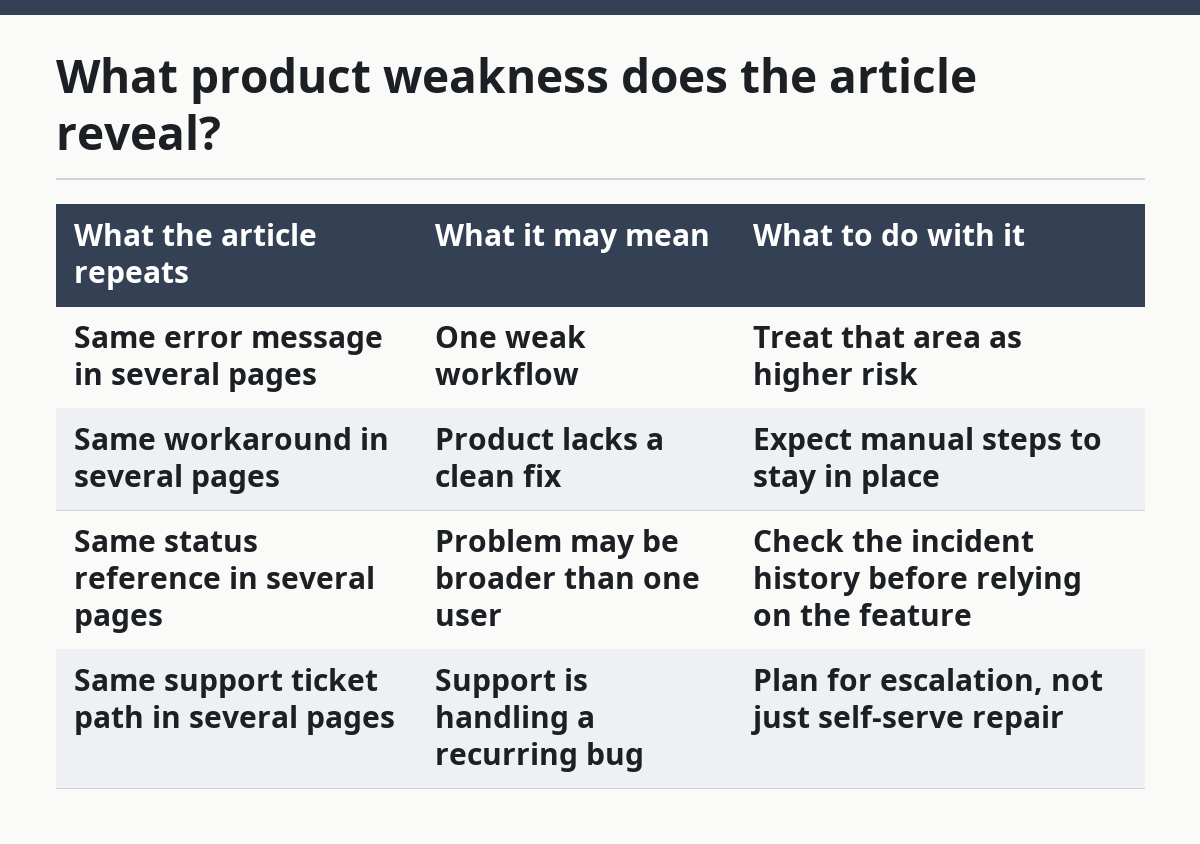
The weakness is often not the bug itself but the shape of the response. A product that uses the same temporary workaround for many errors may be telling you it lacks a durable fix path. A product that hides the scope of the issue can be harder to trust than one that names the fault plainly. For analysis, that honesty is useful.
How should I use the status reference and support ticket?
Meanwhile, use the status reference and support ticket to judge whether the issue is active, known, or already closed. A status reference links the article to a wider incident trail, while a support ticket shows that someone had to escalate the problem beyond self-serve help.
Start with the status reference if the article includes one. That can tell you whether the vendor has acknowledged the bug, whether the incident was limited to a release window, and whether the issue is still open. A ticket number does not solve the problem by itself, but it does show the article is tied to a real support path rather than a vague guess.
Then check the support ticket language. If the article says “contact support,” “reference case,” or “escalate,” the product likely expects a manual handoff. That is normal for some SaaS issues, but it also means the self-serve article is not the end of the process. A page that never explains escalation can leave the reader stuck between a workaround and a dead end.
This is also where you can spot weak support design. If the article uses one status reference for many unrelated errors, the vendor may be grouping problems too loosely. If it uses no ticket path at all and still claims a known issue, the article may be too thin to trust. A clear support trail is a sign of maturity, even when the feature itself is shaky.
What mistakes make readers miss the real signal?
Ultimately, the biggest mistake is treating the article as a fix list instead of a product clue. That costs you the chance to see whether the bug is recurring, whether the workaround is temporary, and whether the vendor is giving you a real repair path or just a short-term patch. If you are unsure, consult a support specialist and verify the claim against the vendor’s incident page.
A second mistake is reading only the first paragraph. The title and lead often state the symptom, but the body may reveal the scope, the environment, and the escalation path. If you stop after the first 5 lines, you may miss the part that says the issue affects only one browser, one plan, or one release branch.
A third mistake is ignoring the words around the workaround. “Use this instead” is not the same as “this is fixed.” The first means the user still needs a detour; the second means the product is repaired. Mixing them up makes a temporary workaround look like a stable solution.
A fourth mistake is skipping the bug notice because it feels technical. That notice may be the only place the vendor says the issue is known and not local. It can also reveal whether the problem belongs to the app, the API, or an integration. If the article contains a support ticket or status reference, read that before you copy the steps. For a second check, compare it with the vendor’s release notes or status page.
When is a troubleshooting article not enough?
So a troubleshooting article is not enough when it hides the root cause, gives only a workaround, or leaves the scope vague. In those cases, the page helps you survive the issue, but it does not tell you whether the product is dependable.
That gap matters most when the article covers a core workflow. If login, billing, export, or data sync needs repeated workarounds, the weakness is not minor. It may be a sign that the product needs support intervention more often than it should. A reader should not confuse “solved for now” with “solid enough to trust.”
This is where a careful read pays off. A strong article will tell you whether the fix is temporary, whether the bug is active, and whether support must step in. A weak article will leave those questions open. If you are using the page to judge the product, not just repair one task, that difference is the whole point.
For related analysis, the hub page on SaaS support, help, and documentation analysis can sit beside this one without repeating the same job. SaaS incident and status-page analysis is another useful internal reference when you want to compare wording across incidents.
How to read a SaaS troubleshooting article for known issues, workarounds, and product weaknesses
They can show how often the product breaks, which workflows fail first, and how the vendor responds. A single bug notice may mean little, but repeated error handling around the same feature points to a weak spot. A page that includes status references and support ticket language is often more revealing than marketing copy.
How do I find product weaknesses in help docs?
Likewise, look for repeated workaround language, repeated error messages, and repeated escalation paths. Those patterns often point to the same weak module, the same integration, or the same release problem. If the document avoids root cause and only gives temporary steps, that is also a weakness signal.
What is a workaround in SaaS support docs?
Then, a workaround is a temporary method that lets the user finish the task without fixing the underlying bug. It can be as small as changing a browser setting or as large as using a different workflow. If the article does not say the issue is resolved, treat the workaround as a stopgap, not a cure. If the wording is unclear, consult support and the vendor’s status notes.
Sources
For error codes and HTTP status handling, the standards to know are RFC 9110 and RFC 7807, which define how many web systems describe request failures and problem details. MDN’s guide to HTTP response status codes gives a practical reference for the same code families. Those sources help explain why a troubleshooting article may focus on a code, a response body, or a status reference instead of only a plain-language description.
Drafted with AI; not yet reviewed by a person.