
How to Build a SaaS Content Decay Monitor for Rankings, CTR, and Outdated Claims: A content decay monitor for SaaS pages watches rankings, click-through…
Last updated: November 17, 2026
A content decay monitor for SaaS pages watches rankings, click-through rate, and outdated claims in one place so you spot drift before a refresh becomes a rescue job. The practical version starts with Google Search Console, then layers page-level checks for stale screenshots, old product claims, and health signals like indexing or title changes.
Key takeaways
- Track three signals together: ranking drop, CTR drift, and page freshness.
- Use Google Search Console as the base, then add a simple page audit for claims and screenshots.
- Alerts work best when they are tied to a page, a query group, and a date range.
- A sharp rank drop is not the same as content decay; flat rankings with falling CTR can be the quieter warning.
- This monitor is for detection, not for deciding what gets fixed first.
What does a content decay monitor actually watch?
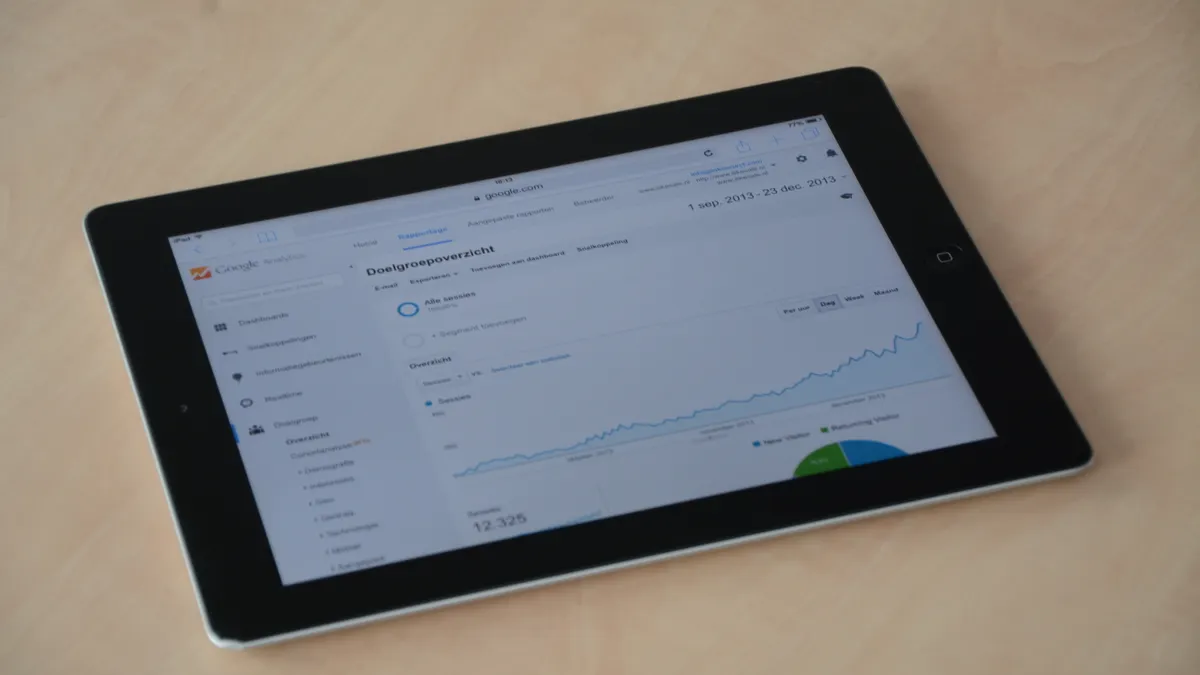
A content decay monitor watches whether a page is losing usefulness or accuracy before traffic falls hard. For SaaS content, that means three things: rankings slipping for key queries, CTR drifting down in Google Search Console, and page facts going stale as the product changes.
The monitor should be page-level, not site-level. A blog post about “best onboarding software” can rank well while the callout box still shows a feature that was removed six months ago. The same page can also keep its position but lose clicks because the title no longer matches what searchers expect.
The important part is timing. If you only check once a quarter, you see decay after it has already spread across a cluster. A weekly check is usually enough for learning stage content, while faster-moving product pages may need daily ranking alerts from Search Console exports or a dashboard feed. The exact cadence matters less than consistency.
Do not treat every dip as decay. Some drops come from seasonality, a competitor’s update, or a search result change. This monitor is for repeated loss across the same page, query group, or on-page claim.
How do you build the monitor?
You build it by connecting Google Search Console data to a page inventory, then adding two manual checks for claims and screenshots. Start with the signals that are already available, then fill the gaps with a simple review layer.
-
Connect Google Search Console and pull page, query, impressions, clicks, CTR, and average position for each URL.
Use a 28-day view and a 3-month comparison so you can see both short drift and slower decay. The result is a baseline that shows what “normal” looks like for each page. -
Group pages by intent in your content sheet.
Put product-led guides, comparison pages, feature explainers, and glossary pages in separate tabs or tags. A page that sells a feature and a page that explains a term decay in different ways, so one alert rule will miss something. -
Set ranking decline alerts on the URLs that matter most.
Trigger an alert when average position worsens across two checks in a row, or when a page drops below its own usual band. Use the page’s own history, not a site-wide average, because SaaS content rarely behaves like a single block. -
Watch CTR drift by query group, not by single keyword alone.
A page can hold position and still lose clicks if the title, meta description, or rich result no longer matches the search intent. Compare CTR against the same query group over 28 days, then flag a decline that repeats in the next check. -
Audit outdated claims in the body copy.
Mark any sentence that names a feature, limit, workflow, integration, or date-sensitive promise. If the claim can become wrong in 30 days, it belongs on the monitor. A single stale claim can make the whole page feel untrustworthy. -
Check stale screenshots on pages that show product UI.
Flag screenshots with old navigation, old labels, or old pricing visuals. Even a useful article can look abandoned when a screenshot still shows an interface from 2024 after the product has already changed. -
Record page health signals from the page itself.
Track canonical tags, indexing status, broken internal links, broken images, and title or meta changes. These do not prove decay on their own, but they often explain why rankings and CTR move together.
Which signals matter most?

The most useful signals are ranking decline, CTR drift, outdated claims, stale screenshots, and page health signals. If the page only has one of those problems, the fix is usually small; if it has three at once, the page is entering decay, not just wobbling.
| Signal | What it tells you | Where it comes from | Best use |
|---|---|---|---|
| Rankings | Search visibility is slipping | Google Search Console | Spot page-level decline |
| CTR | Searchers see the page but do not choose it | Google Search Console | Catch title or intent mismatch |
| Outdated claims | The page says something the product no longer supports | Manual review | Catch trust damage |
| Stale screenshots | The visuals show old UI or old pricing | Manual review | Catch visible drift |
| Page health signals | The page may be harder for search engines or users to trust | Crawl or site checks | Find technical noise around decay |
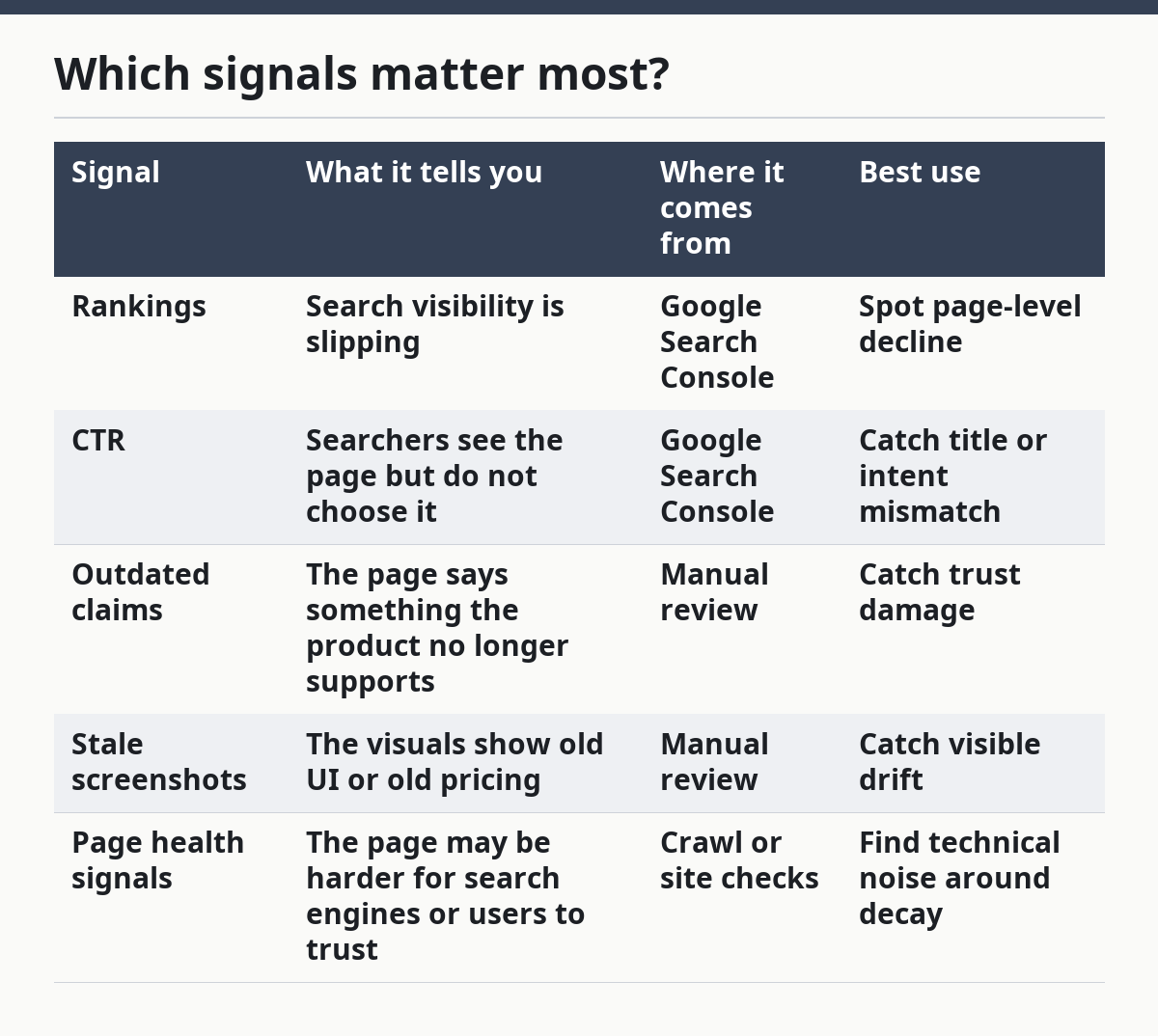
The strongest monitor uses all five, but the weight should not be equal. Rankings and CTR are early warning signs. Outdated claims and stale screenshots are trust problems. Page health signals are often the reason a page starts sliding, but they are not the whole story.
A page can keep traffic while hiding decay in the body copy. That is why a monitor that only watches impressions and clicks is too late for SaaS content. The page may still rank, but the reader leaves with the wrong idea about the product.
How do you set alert thresholds without noise?
You set alert thresholds by comparing each page to its own history, not to a single site-wide number. That keeps the monitor useful because a feature page with 200 impressions a week should not use the same trigger as a glossary page with 20,000.
Use three thresholds. The first is a gentle watch when CTR or position moves in the wrong direction for two checks. The second is a review threshold when the drop repeats across the same 28-day window. The third is an action threshold when rankings, CTR, and a content issue all point the same way.
Do not alert on every small wobble. Search results move, and CTR can shift when a snippet changes even if the page is still sound. A noisy monitor trains people to ignore the alerts, which defeats the point.
A practical rule is to alert on a pattern, not a day. One weak week is a note. Two weak checks in a row are a signal. When the same URL also has an outdated claim or old screenshot, the alert is strong enough to deserve a review.
How do you check outdated claims fast?
You check outdated claims fast by scanning for date-sensitive sentences and product-specific promises. The fastest pass is a 10-minute review of the intro, feature list, screenshots, and conclusion, since those areas usually carry the claims readers remember.
Build a checklist with plain labels: feature availability, limits, integrations, pricing references, compliance language, and release dates. A sentence that says a feature “works with X” or “supports Y” is a possible decay point if X or Y changes. The same is true for language that promises a workflow or result the product no longer offers.
Avoid the trap of writing “this page feels old” in the monitor. That note is too vague to act on. Write down the exact claim, the line number or section, and the date it should be checked again. A monitor that names the claim is much more useful than one that only flags the page.
This is also where stale screenshots matter most. If the screenshot and the copy disagree, the page loses trust even when the ranking stays stable. The monitor should treat that mismatch as its own signal, not as a side note.
What should the dashboard show first?
The dashboard should show the page, the signal, the direction of change, and the last review date first. That keeps the monitor readable in a 10-second scan and stops people from hunting through raw exports.
Put the most important columns at the front: URL, page type, top query group, average position, CTR, last change detected, outdated claim flag, and screenshot flag. If you track page health signals, add indexing status and broken-link count near the end.
Color helps, but only if it stays simple. Use one color for watch, one for review, and one for action. Too many colors turn the dashboard into noise. A clean table or board works better than a dense chart wall for this use case.
The dashboard should also separate signal types. Rankings and CTR belong to the search side. Outdated claims and stale screenshots belong to the content side. Page health signals sit between them because they can explain both.
How do you keep the monitor useful after launch?
You keep the monitor useful by reviewing false alarms every month and removing signals that never lead to action. A monitor that grows without cleanup becomes a junk drawer in 30 to 90 days.
Start by checking which alerts led to a real content review. If a trigger never changed a page, the threshold may be too sensitive. If a page changed but the monitor never flagged it, the rule is too soft or the signal is missing.
This is also where the honest trade-off shows up. A light monitor is easier to maintain but misses edge cases. A heavy monitor catches more decay but asks for more manual review. For a small SaaS content team, the lighter version is usually better until the page set grows.
The monitor is not a prioritization matrix, and it is not an update workflow. It tells you where decay is showing up. Another process decides what gets fixed first and how the update gets shipped.
What do people usually get wrong?
The biggest mistake is watching traffic only. Traffic often falls after the decay has already been visible in rankings, CTR, or stale claims for weeks. By the time the page loses clicks, the trust problem is usually older than the data.
The second mistake is mixing every page type into one alert. A comparison page, a product tutorial, and a glossary entry do not decay on the same schedule. If they share one threshold, the monitor will either miss the real problem or raise too many false alarms.
The third mistake is skipping manual checks. Search Console cannot tell you that a screenshot is outdated or that a claim about a feature release is now wrong. If the monitor never checks the page text, it only sees part of the problem.
For most SaaS sites, the better choice is a lean monitor with clear flags and a weekly review, not a giant system with too many rules. It is wrong for teams that need a full refresh queue or a detailed prioritization model on day one.
What sources help ground the monitor?
Google Search Console is the base source for rankings, clicks, CTR, and average position, and its help pages are the cleanest starting point for that data model. The official documentation on performance reports is the right place to check which fields are available.
The second useful source is Google’s own explanation of Search Console data, which helps keep the monitor aligned with how the platform defines impressions, clicks, and position. That matters because a content decay monitor should not rely on loose definitions.
If the monitor includes page health signals, the exact sources can vary by site, but the rule stays the same: use sources that clearly map to the page and the metric. The monitor is only as honest as the data behind it.
What is content decay?
Content decay is the slow loss of usefulness, accuracy, or search performance on a page. In SaaS content, it usually shows up as weaker rankings, lower CTR, or claims that no longer match the product.
It does not always mean the page is broken. A page can still rank and still decay if the promise on the page is out of date. That is why a monitor needs both search signals and content checks.
How do you spot decaying content before traffic falls?
You spot it by watching rankings and CTR before impressions collapse. A page that starts slipping in average position or loses CTR in Google Search Console is often showing the first signs of decay.
You also need to scan for outdated claims and stale screenshots. Those are early trust signals, and they often change before traffic does.
Which metrics should trigger a refresh?
A refresh should be triggered by a repeated ranking drop, a clear CTR decline, or a content issue such as an outdated claim or stale screenshot. The exact trigger depends on the page type, but the page should show a pattern, not a one-day wobble.
Page health signals can add weight when they appear with the other signs. Broken links, indexing changes, and title edits can explain why a page is drifting, but they should not be the only trigger on their own.
Drafted with AI; not yet reviewed by a person.